Managing Roles

Managing Roles

In Zoho CRM, you can set up the organization-wide hierarchy using Roles. Users at a higher hierarchy can always access all the records of at a lower hierarchy. For example, a Sales Manager can access all the Sales Reps' records whereas Sales Reps can access only their records. 
Key points to understanding roles
  1. Users with a  CEO role  have access to the entire database within your organization.
  2. Managers in the role hierarchy cannot view or edit their subordinates' records if they do not have the "Read" or "Edit" permissions for the type of record.
  3. Users at a higher role can access other users’ data below their hierarchy. For example: a Sales Manager can access his/her sub-ordinates' data.
  4. By default, users of the same role cannot access each others data. For example, the VP Engineering cannot access the VP Marketing data and vice versa though they are of the same hierarchy.
  5. By default, users at the top of the hierarchy cannot view the data shared to their subordinate users through custom sharing rules. However, you can enable access rights to the managers by using the  Superiors Allowed  option while creating data sharing rule.
  6. Using the  Share Data with Peers  option you can enable sharing of data among users of the same role.
  7. One must have read or read/write access to the primary record to add Notes, attachments or send email to it.
Availability
Permission Required
Users with the Manage Roles permission in profile can access this feature.
Check Feature Availability and Limits
Take a look at a model of organization hierarchy:

Zoho CRM - Sample Role Hierarchy

Creating Roles

By default, the CEO and Manager roles are enabled for your Zoho CRM paid account. In addition, you can create different types of roles for users based on their position in your organization hierarchy and the type of your Zoho CRM Edition.

Note
  • A user with an Administrator profile will have access to all the data irrespective of the role assigned to the user.

To create new roles

  1. Go to Setup > Security Control > Roles and Sharing.
  2. In the Roles section, click New Role.
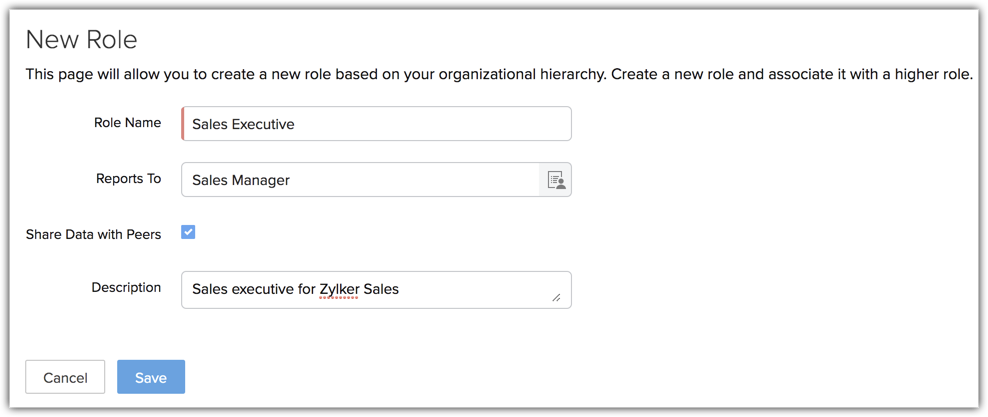
  3. In the  New Role  page, do the following:
    • Enter the Role Name. Do not add a role with the same name.
    • Select the immediate superior's role from the Reports To lookup.
      If you do not select the superior's role, the new role will be created under the CEO role.
    • Select the Share Data with Peers check box if you would like to enable access rights to peers.
    • Specify the Description for the role.
  4. Click Save.

Note
  • You can create roles only if you have more than one user in your Zoho CRM account.

Assigning Roles to Users

After creating roles, you can assign them to the users in your organization. 

To assign roles to the users

  1. Go to Setup > General > Users.
  2. In the Users page, click on a particular <User name>. 
  3. In the user's detail page, click the edit  icon.
  4. In the Edit User page, select a specific Role from the dropdown list.
  5. Click Save.

Editing Roles

You can modify the user roles as per changes in your organization's hierarchy. As part of the modification of the roles, you can perform the following:

  • Rename the role
  • Change the Superior Role
  • Change the setting for sharing data with Peers

While changing the role names, all the data sharing rules will be updated automatically. So you don't need to calculate the data sharing rules or update the user details.

To edit a role

  1. Go to Setup > Security Control > Roles and Sharing.
  2. In the Roles List, click the Role name.
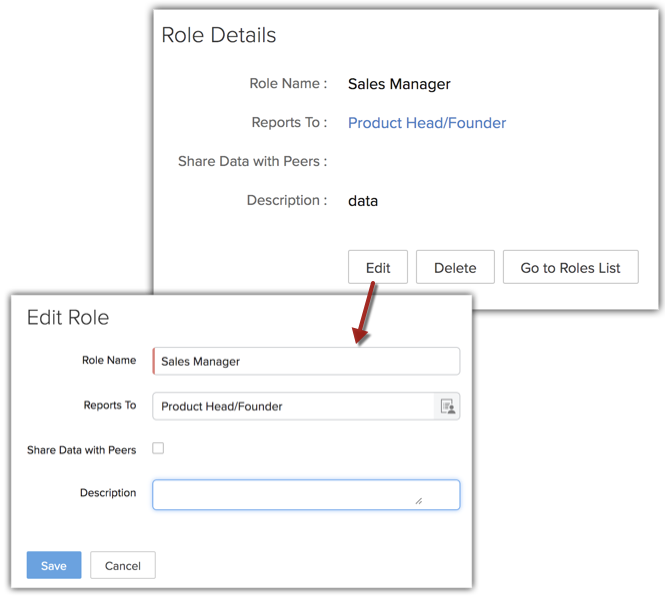
  3. In the Role Details page, click Edit.
  4. In the Edit Role page, update the new properties for the role.
  5. Click Save.

Deleting Roles

You cannot delete the existing roles without transferring the users to a new role.

To delete a role

  1. Go to Setup > Security Control > Roles and Sharing.
  2. In the Roles page, click the Role name.
  3. In the Role Details page, click Delete.
  4. In the Delete Role page, click on an existing Role to transfer the child-roles to the selected role.
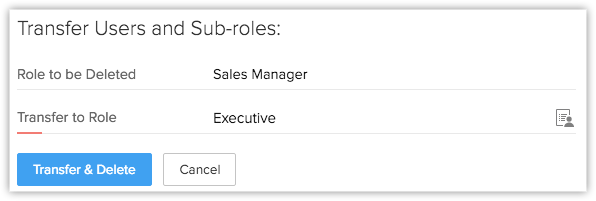
  5. Click Transfer & Delete.
    Now the role and child-roles are transferred to the new role and a different organization hierarchy is created.
    • Related Articles

    • Manage Hierarchy Preference

      A hierarchy structure in an organization is defined to rank members according to their designations. Zoho CRM provides two different hierarchy structures for your organization: Role Hierarchy and Reporting Hierarchy. You can select the hierarchy ...
    • Creating Reporting Hierarchy

      In Zoho CRM's Reporting Hierarchy, you can set up the organization's hierarchial structure based on your user roles, and also you can assign users to appropriate reporting managers for a well-defined record accessibility. In this structure, a user is ...
    • Adding an Approval Process

      Each approval process is associated with a rule that defines the process. By specifying such a rule, you can ensure that any record meeting the rule's criteria will automatically be submitted for approval. Automatic approval submissions reduce the ...
    • Associating Actions for Approval or Rejection

      With each approval process, you can associate some actions such as adding a task, updating fields, sending email alerts, calling webhooks, etc. that will be executed on approval or rejection of a record. When you set multiple stages of approval that ...
    • FAQs: Audit Logs

      What is an audit log and how is it helpful? An audit log (or audit trail) is a list that shows what actions users have taken in your CRM, shown in the order they happened. It helps you see who did what, like what records were changed, added, or ...

    How to's Videos


      Success Stories